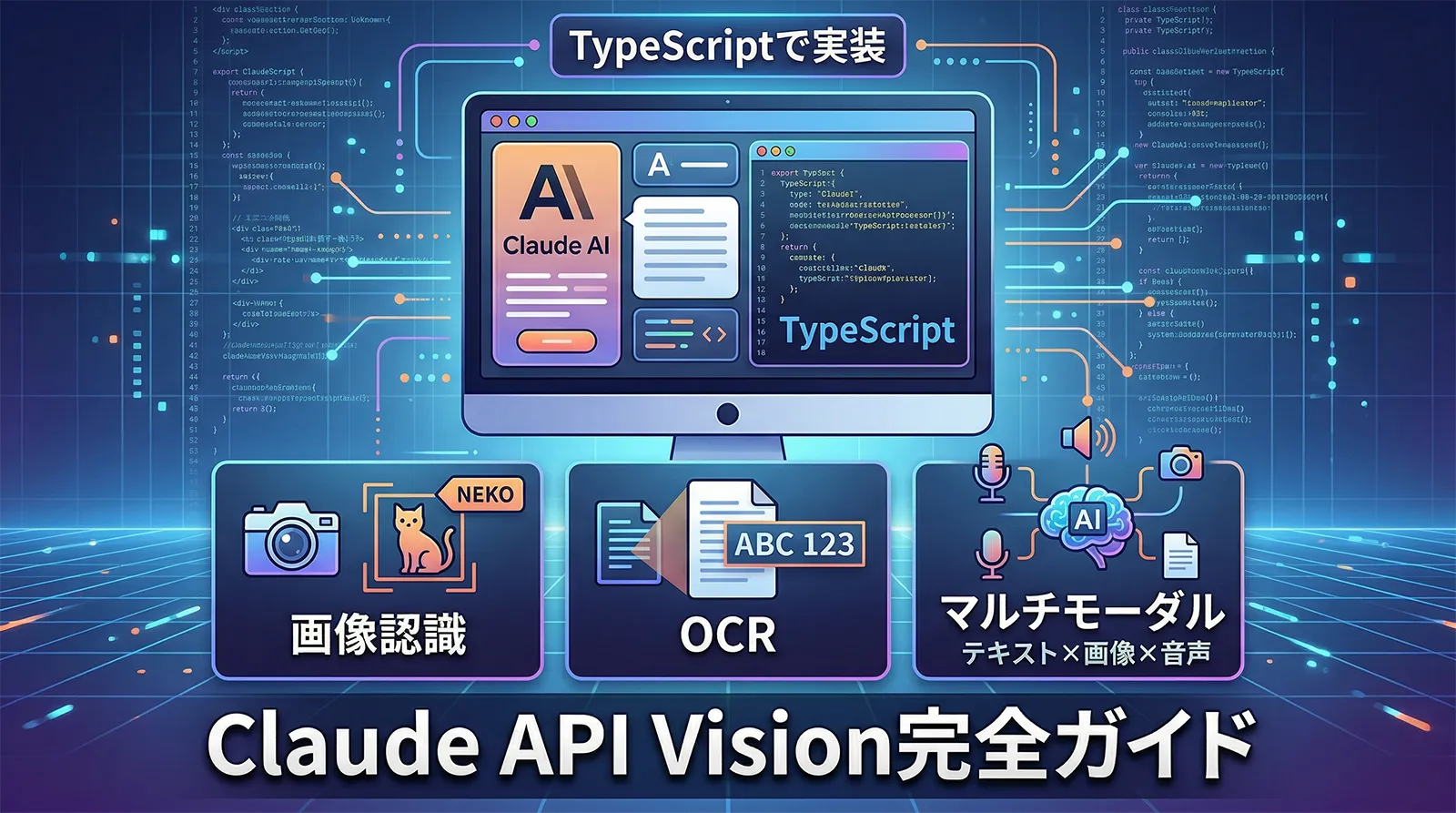
Claude APIはテキスト生成だけではありません。画像を入力として渡すと、スクリーンショットのバグ特定・レシートのOCR・グラフの数値読み取り・UIデザインの評価など、視覚情報を使った処理を自動化できます。
この機能をVision機能(マルチモーダル入力)と呼びます。claude-sonnet-4-6をはじめとする最新モデルはすべてVisionに対応しており、追加料金なしで通常のAPI料金で利用できます。
この記事では、TypeScriptを使ってClaude APIのVision機能を実装する方法を、Base64・URL・Files APIの使い分けから、複数画像・PDF処理・実践ユースケースまで網羅的に解説します。Claude APIの基本(テキスト生成・ストリーミング)はClaude API TypeScript入門を参照してください。
Claude Vision APIでできること
Claude APIのVision機能は、単純な「画像の説明」にとどまりません。実務で役立つ具体的なユースケースを確認しましょう。
| ユースケース | 入力 | Claude APIの出力例 |
|---|---|---|
| OCR(文字起こし) | レシート・手書きメモ・スキャン文書 | 金額・日付・品名をJSON形式で抽出 |
| UI/エラー分析 | エラー画面のスクリーンショット | エラー原因の特定・修正コードの提案 |
| チャート・グラフ読み取り | 棒グラフ・折れ線グラフ | 数値データのテキスト化・傾向の説明 |
| デザインレビュー | UIモックアップ・Figmaの書き出し | UX改善点・アクセシビリティ問題の指摘 |
| 複数画像の比較 | Before/After画像2枚 | 変更点の特定・差分の説明 |
| PDF・ドキュメント処理 | 契約書・仕様書のPDF | 重要項目の抽出・要約・質疑応答 |
JPEG・PNG・GIF・WebPの4形式に対応しています。圧縮効率の観点ではWebPが最も優れていますが、手元のファイルをそのまま使っても動作します。APIへの送信サイズは1ファイルあたり5MB以内という制限があります。
画像入力の3つの方法
Claude APIへの画像入力にはBase64・URL・Files APIの3つの方法があります。用途に応じて使い分けることでコストとパフォーマンスを最適化できます。
| 方法 | 向いているシーン | メリット | デメリット |
|---|---|---|---|
| Base64 | ローカルファイル・動的生成画像 | サーバー不要・シンプル | リクエストサイズが大きくなる |
| URL | 公開URLがある画像 | コードが短い | Claudeが画像を取得する必要がある(レイテンシ) |
| Files API | 同じ画像を繰り返し使う・PDF | リクエストが軽量・再利用可能 | 事前アップロードが必要 |
方法①:Base64エンコード(ローカルファイル)
ローカルのファイルを読み込んでBase64に変換し、リクエストに直接埋め込む方法です。最もシンプルで、外部サーバーへの画像公開が不要です。
npm install @anthropic-ai/sdk
import Anthropic from "@anthropic-ai/sdk";
import fs from "fs";
import path from "path";

const client = new Anthropic({
  apiKey: process.env.ANTHROPIC_API_KEY,
});

async function analyzeLocalImage(imagePath: string, prompt: string): Promise<string> {
  // ファイルを読み込んでBase64に変換
  const imageBuffer = fs.readFileSync(imagePath);
  const base64Image = imageBuffer.toString("base64");

  // 拡張子からmedia_typeを決定
  const ext = path.extname(imagePath).toLowerCase();
  const mediaTypeMap: Record<string, "image/jpeg" | "image/png" | "image/gif" | "image/webp"> = {
    ".jpg": "image/jpeg",
    ".jpeg": "image/jpeg",
    ".png": "image/png",
    ".gif": "image/gif",
    ".webp": "image/webp",
  };
  const mediaType = mediaTypeMap[ext] ?? "image/jpeg";

  const response = await client.messages.create({
    model: "claude-sonnet-4-6",
    max_tokens: 1024,
    messages: [
      {
        role: "user",
        content: [
          {
            type: "image",
            source: {
              type: "base64",
              media_type: mediaType,
              data: base64Image,
            },
          },
          {
            type: "text",
            text: prompt,
          },
        ],
      },
    ],
  });

  const textBlock = response.content.find((b) => b.type === "text");
  return textBlock?.type === "text" ? textBlock.text : "";
}

// 実行例
(async () => {
  const result = await analyzeLocalImage(
    "./screenshot.png",
    "このスクリーンショットにエラーが表示されています。エラーの原因と修正方法を教えてください。"
  );
  console.log(result);
})();
data:image/jpeg;base64,のようなプレフィックスは不要(dataプロパティには純粋なBase64文字列のみ)- 5MB超のファイルはAPIエラーになる。大きい画像は事前にリサイズを推奨
- 最長辺を1568px以内にリサイズするとトークン消費を抑えられる
方法②:URL指定(公開画像)
画像がすでにインターネット上に公開されている場合は、URLを直接指定できます。コードが簡潔になりますが、Claudeが画像を取得する際の遅延が発生する点に注意してください。
import Anthropic from "@anthropic-ai/sdk";

const client = new Anthropic({
  apiKey: process.env.ANTHROPIC_API_KEY,
});

async function analyzeImageFromUrl(imageUrl: string, prompt: string): Promise<string> {
  const response = await client.messages.create({
    model: "claude-sonnet-4-6",
    max_tokens: 1024,
    messages: [
      {
        role: "user",
        content: [
          {
            type: "image",
            source: {
              type: "url",
              url: imageUrl,
            },
          },
          {
            type: "text",
            text: prompt,
          },
        ],
      },
    ],
  });

  const textBlock = response.content.find((b) => b.type === "text");
  return textBlock?.type === "text" ? textBlock.text : "";
}

// 実行例
(async () => {
  const result = await analyzeImageFromUrl(
    "https://example.com/chart.png",
    "このグラフから読み取れる主要なトレンドを3点にまとめてください。"
  );
  console.log(result);
})();
方法③:Files API(再利用・PDF対応)
同じ画像やPDFを複数回使う場合はFiles APIが効率的です。1回アップロードしてfile_idを取得すると、以降のリクエストではIDを指定するだけになります。リクエストのペイロードが小さくなるためレイテンシも改善します。
import Anthropic from "@anthropic-ai/sdk";
import fs from "fs";

const client = new Anthropic({
  apiKey: process.env.ANTHROPIC_API_KEY,
});

// ── ステップ1: ファイルをアップロード(最初の1回だけ)──
async function uploadImageFile(filePath: string): Promise<string> {
  const file = await client.beta.files.upload({
    file: fs.createReadStream(filePath),
  });
  console.log(`アップロード完了: file_id = ${file.id}`);
  return file.id;
}

// ── ステップ2: file_idで画像を参照(何度でも再利用可)──
async function analyzeWithFileId(fileId: string, prompt: string): Promise<string> {
  const response = await client.messages.create({
    model: "claude-sonnet-4-6",
    max_tokens: 1024,
    messages: [
      {
        role: "user",
        content: [
          {
            type: "image",
            source: {
              type: "file",
              file_id: fileId,
            },
          },
          {
            type: "text",
            text: prompt,
          },
        ],
      },
    ],
  });

  const textBlock = response.content.find((b) => b.type === "text");
  return textBlock?.type === "text" ? textBlock.text : "";
}

// 実行例: 同じ画像に複数の質問をする
(async () => {
  const fileId = await uploadImageFile("./monthly-report.png");

  const q1 = await analyzeWithFileId(fileId, "このレポートの売上合計を教えてください。");
  const q2 = await analyzeWithFileId(fileId, "前月比で最も伸びた項目はどれですか?");
  const q3 = await analyzeWithFileId(fileId, "経営者向けに3行でサマリーを作成してください。");

  console.log("売上合計:", q1);
  console.log("伸び率:", q2);
  console.log("サマリー:", q3);
})();
2026年3月時点ではFiles APIはベータ版です。SDKからは
client.beta.filesでアクセスします。アップロードしたファイルはアカウントに紐づいて保存されるため、不要になったらclient.beta.files.delete(fileId)で削除してください。複数画像を一度に処理する
Claude APIはリクエスト1回で複数の画像を渡せます。content配列に複数の画像ブロックを追加するだけです。APIでは最大100枚まで対応しています。
import Anthropic from "@anthropic-ai/sdk";
import fs from "fs";

const client = new Anthropic({
  apiKey: process.env.ANTHROPIC_API_KEY,
});

// Before/After画像を比較する実例
async function compareImages(
  beforePath: string,
  afterPath: string
): Promise<string> {
  const toBase64 = (p: string) => fs.readFileSync(p).toString("base64");

  const response = await client.messages.create({
    model: "claude-sonnet-4-6",
    max_tokens: 2048,
    messages: [
      {
        role: "user",
        content: [
          // 画像はテキストの前に置く(パフォーマンス向上)
          {
            type: "image",
            source: { type: "base64", media_type: "image/png", data: toBase64(beforePath) },
          },
          {
            type: "image",
            source: { type: "base64", media_type: "image/png", data: toBase64(afterPath) },
          },
          {
            type: "text",
            text: "1枚目はBefore、2枚目はAfterのスクリーンショットです。"
              + "UIの変更点をすべて列挙してください。"
              + "変更の影響(ユーザー体験の改善・懸念点)も含めて評価してください。",
          },
        ],
      },
    ],
  });

  const textBlock = response.content.find((b) => b.type === "text");
  return textBlock?.type === "text" ? textBlock.text : "";
}

(async () => {
  const result = await compareImages("./before.png", "./after.png");
  console.log(result);
})();
画像ごとにトークンを消費します(1024×1024画像で約1,600トークン)。20枚を超えると最大解像度が2000×2000pxに制限されます。多数の画像を処理する場合は、事前にリサイズして不要な解像度を落とすことを推奨します。
PDFドキュメントを処理する
Claude APIはPDFも直接処理できます。PDFはページごとにテキストと画像として解釈されるため、文字だけでなく図表・グラフが含まれる資料の分析にも対応しています。
import Anthropic from "@anthropic-ai/sdk";
import fs from "fs";

const client = new Anthropic({
  apiKey: process.env.ANTHROPIC_API_KEY,
});

// PDFをBase64で直接送信する方法
async function analyzePdfBase64(pdfPath: string, question: string): Promise<string> {
  const pdfBuffer = fs.readFileSync(pdfPath);
  const base64Pdf = pdfBuffer.toString("base64");

  const response = await client.messages.create({
    model: "claude-sonnet-4-6",
    max_tokens: 2048,
    messages: [
      {
        role: "user",
        content: [
          {
            type: "document",
            source: {
              type: "base64",
              media_type: "application/pdf",
              data: base64Pdf,
            },
          },
          {
            type: "text",
            text: question,
          },
        ],
      },
    ],
  });

  const textBlock = response.content.find((b) => b.type === "text");
  return textBlock?.type === "text" ? textBlock.text : "";
}

// Files APIを使ってPDFをアップロードしてから処理する方法(大きいPDF向け)
async function analyzePdfWithFilesApi(pdfPath: string, question: string): Promise<string> {
  // PDFをアップロード(初回のみ)
  const file = await client.beta.files.upload({
    file: fs.createReadStream(pdfPath),
  });

  const response = await client.messages.create({
    model: "claude-sonnet-4-6",
    max_tokens: 2048,
    messages: [
      {
        role: "user",
        content: [
          {
            type: "document",
            source: {
              type: "file",
              file_id: file.id,
            },
          },
          {
            type: "text",
            text: question,
          },
        ],
      },
    ],
  });

  const textBlock = response.content.find((b) => b.type === "text");
  return textBlock?.type === "text" ? textBlock.text : "";
}

(async () => {
  // 契約書の重要項目を抽出する例
  const summary = await analyzePdfBase64(
    "./contract.pdf",
    "この契約書から以下の項目を抽出してください:
"
      + "1. 契約期間
"
      + "2. 支払い条件
"
      + "3. 解約条件
"
      + "4. 注意すべき特記事項"
  );
  console.log(summary);
})();
PDFはページあたり1,500〜3,000トークンを消費します(コンテンツ密度による)。100ページのPDFは最大30万トークン程度になる可能性があるため、
claude-sonnet-4-6の20万トークンのコンテキストウィンドウと照らし合わせてページ数を計画してください。実践ユースケース実装例
レシートのOCR・データ抽出
レシートや領収書を撮影した画像から金額・日付・店舗名を構造化データとして抽出します。JSONフォーマットで出力させることで、後続処理との連携が容易になります。
import Anthropic from "@anthropic-ai/sdk";
import fs from "fs";

const client = new Anthropic({
  apiKey: process.env.ANTHROPIC_API_KEY,
});

interface ReceiptData {
  storeName: string;
  date: string;
  items: Array<{ name: string; price: number }>;
  subtotal: number;
  tax: number;
  total: number;
}

async function extractReceiptData(imagePath: string): Promise<ReceiptData> {
  const base64Image = fs.readFileSync(imagePath).toString("base64");

  const response = await client.messages.create({
    model: "claude-sonnet-4-6",
    max_tokens: 1024,
    messages: [
      {
        role: "user",
        content: [
          {
            type: "image",
            source: { type: "base64", media_type: "image/jpeg", data: base64Image },
          },
          {
            type: "text",
            text: `このレシートから情報を抽出してください。
以下のJSON形式のみで返答してください。余分なテキストは一切含めないでください。

{
  "storeName": "店舗名",
  "date": "YYYY-MM-DD形式の日付",
  "items": [
    { "name": "商品名", "price": 金額(数値) }
  ],
  "subtotal": 小計(数値),
  "tax": 税額(数値),
  "total": 合計(数値)
}`,
          },
        ],
      },
    ],
  });

  const text = response.content.find((b) => b.type === "text");
  if (!text || text.type !== "text") throw new Error("No text response");

  return JSON.parse(text.text) as ReceiptData;
}

(async () => {
  const data = await extractReceiptData("./receipt.jpg");
  console.log("店舗:", data.storeName);
  console.log("日付:", data.date);
  console.log("合計:", data.total, "円");
  console.log("明細:", data.items);
})();
エラー画面の自動分析
アプリケーションのエラースクリーンショットをClaudeに渡すと、エラーの原因と修正方法を自動で提案させることができます。CI/CDパイプラインのテスト失敗通知と組み合わせると特に効果的です。
import Anthropic from "@anthropic-ai/sdk";
import fs from "fs";

const client = new Anthropic({
  apiKey: process.env.ANTHROPIC_API_KEY,
});

interface ErrorAnalysis {
  errorType: string;
  likelyCause: string;
  suggestedFix: string;
  codeExample?: string;
}

async function analyzeErrorScreenshot(screenshotPath: string): Promise<ErrorAnalysis> {
  const base64Image = fs.readFileSync(screenshotPath).toString("base64");

  const response = await client.messages.create({
    model: "claude-sonnet-4-6",
    max_tokens: 2048,
    messages: [
      {
        role: "user",
        content: [
          {
            type: "image",
            source: { type: "base64", media_type: "image/png", data: base64Image },
          },
          {
            type: "text",
            text: `このエラー画面を分析してください。以下のJSON形式で返答してください:

{
  "errorType": "エラーの種類(例: TypeError, NetworkError等)",
  "likelyCause": "エラーの原因(100文字以内)",
  "suggestedFix": "修正方法の説明(200文字以内)",
  "codeExample": "修正コード例(ある場合のみ)"
}`,
          },
        ],
      },
    ],
  });

  const text = response.content.find((b) => b.type === "text");
  if (!text || text.type !== "text") throw new Error("No text response");

  return JSON.parse(text.text) as ErrorAnalysis;
}

(async () => {
  const analysis = await analyzeErrorScreenshot("./error.png");
  console.log("エラー種別:", analysis.errorType);
  console.log("原因:", analysis.likelyCause);
  console.log("修正方法:", analysis.suggestedFix);
  if (analysis.codeExample) {
    console.log("修正例:
", analysis.codeExample);
  }
})();
複数チャートからレポート自動生成
複数のグラフ画像を一度に送って、ビジネスレポートを自動生成する例です。月次レポート作成の自動化に直接使えます。
import Anthropic from "@anthropic-ai/sdk";
import fs from "fs";

const client = new Anthropic({
  apiKey: process.env.ANTHROPIC_API_KEY,
});

async function generateReportFromCharts(chartPaths: string[]): Promise<string> {
  const imageBlocks = chartPaths.map((p) => ({
    type: "image" as const,
    source: {
      type: "base64" as const,
      media_type: "image/png" as const,
      data: fs.readFileSync(p).toString("base64"),
    },
  }));

  const response = await client.messages.create({
    model: "claude-sonnet-4-6",
    max_tokens: 3000,
    messages: [
      {
        role: "user",
        content: [
          ...imageBlocks,
          {
            type: "text",
            text: `上記のグラフ${chartPaths.length}枚をもとに、経営陣向けの月次レポートを作成してください。

以下の構成で、1,000文字程度にまとめてください:
1. エグゼクティブサマリー(3行)
2. 主要指標の動向(箇条書き)
3. 懸念事項と推奨アクション
4. 来月の見通し`,
          },
        ],
      },
    ],
  });

  const text = response.content.find((b) => b.type === "text");
  return text?.type === "text" ? text.text : "";
}

(async () => {
  const report = await generateReportFromCharts([
    "./sales-chart.png",
    "./cost-chart.png",
    "./user-growth-chart.png",
  ]);
  console.log(report);
})();
トークンコストと最適化
画像処理はテキストより多くのトークンを消費します。大量の画像を処理するシステムでは、事前にコスト見積もりを立てることが重要です。
| 画像サイズ | 消費トークン数(目安) | Sonnet 4.6コスト(入力) |
|---|---|---|
| 512 × 512px | 約300トークン | 約$0.0009 |
| 1024 × 1024px | 約1,600トークン | 約$0.0048 |
| 2000 × 2000px | 約5,100トークン | 約$0.015 |
| 最長辺1568px以内(推奨) | 約1,600トークン以内 | 約$0.005以内 |
※ claude-sonnet-4-6の入力トークン単価は$3/100万トークン(2026年3月時点)。料金は変更される場合があるため、Anthropic公式の料金ページで最新情報を確認してください。
画像をリサイズしてコストを削減する
import sharp from "sharp";
import fs from "fs";

// sharp パッケージを使って画像をリサイズ
// npm install sharp @types/sharp

async function resizeImage(
  inputPath: string,
  outputPath: string,
  maxSize: number = 1568
): Promise<void> {
  const metadata = await sharp(inputPath).metadata();
  const { width = 0, height = 0 } = metadata;

  // 最長辺がmaxSizeを超える場合のみリサイズ
  if (width <= maxSize && height <= maxSize) {
    fs.copyFileSync(inputPath, outputPath);
    return;
  }

  const ratio = maxSize / Math.max(width, height);
  await sharp(inputPath)
    .resize(Math.round(width * ratio), Math.round(height * ratio))
    .toFile(outputPath);

  console.log(`リサイズ完了: ${width}x${height} → ${Math.round(width * ratio)}x${Math.round(height * ratio)}`);
}

// 使用例
(async () => {
  await resizeImage("./large-screenshot.png", "./resized.png");
})();
- 画像の最長辺を1568px以内にリサイズ(品質は保ちつつトークンを最小化)
- 同じ画像を複数回使う場合はFiles APIでアップロード(リクエストサイズ削減)
- 画像はテキストプロンプトの前に配置するとパフォーマンスが向上する
- 白い余白・不要な部分をトリミングして情報密度を高める
エラーハンドリング
画像処理では、ファイルサイズ超過・対応外フォーマット・ネットワークエラーなど複数の失敗パターンがあります。本番環境では適切なエラーハンドリングを実装してください。
import Anthropic from "@anthropic-ai/sdk";
import fs from "fs";

const client = new Anthropic({
  apiKey: process.env.ANTHROPIC_API_KEY,
});

const MAX_FILE_SIZE_MB = 5;
const SUPPORTED_FORMATS = [".jpg", ".jpeg", ".png", ".gif", ".webp"];

function validateImageFile(filePath: string): void {
  if (!fs.existsSync(filePath)) {
    throw new Error(`ファイルが見つかりません: ${filePath}`);
  }

  const ext = filePath.toLowerCase().split(".").pop();
  if (!ext || !SUPPORTED_FORMATS.includes(`.${ext}`)) {
    throw new Error(`対応していないフォーマットです: ${ext}。対応: ${SUPPORTED_FORMATS.join(", ")}`);
  }

  const stats = fs.statSync(filePath);
  const fileSizeMB = stats.size / (1024 * 1024);
  if (fileSizeMB > MAX_FILE_SIZE_MB) {
    throw new Error(`ファイルサイズが上限を超えています: ${fileSizeMB.toFixed(1)}MB(上限: ${MAX_FILE_SIZE_MB}MB)`);
  }
}

async function safeAnalyzeImage(imagePath: string, prompt: string): Promise<string | null> {
  try {
    validateImageFile(imagePath);

    const base64Image = fs.readFileSync(imagePath).toString("base64");
    const ext = imagePath.toLowerCase().split(".").pop();
    const mediaType = ext === "png" ? "image/png"
      : ext === "gif" ? "image/gif"
      : ext === "webp" ? "image/webp"
      : "image/jpeg";

    const response = await client.messages.create({
      model: "claude-sonnet-4-6",
      max_tokens: 1024,
      messages: [
        {
          role: "user",
          content: [
            { type: "image", source: { type: "base64", media_type: mediaType, data: base64Image } },
            { type: "text", text: prompt },
          ],
        },
      ],
    });

    const textBlock = response.content.find((b) => b.type === "text");
    return textBlock?.type === "text" ? textBlock.text : null;

  } catch (error) {
    if (error instanceof Anthropic.APIError) {
      console.error(`APIエラー (${error.status}): ${error.message}`);
      if (error.status === 400) {
        console.error("画像フォーマットまたはサイズに問題があります。");
      } else if (error.status === 529) {
        console.error("APIが過負荷状態です。しばらく待ってからリトライしてください。");
      }
    } else if (error instanceof Error) {
      console.error("バリデーションエラー:", error.message);
    }
    return null;
  }
}

(async () => {
  const result = await safeAnalyzeImage("./image.jpg", "この画像を説明してください。");
  if (result) console.log(result);
})();
まとめ
Claude APIのVision機能を使うと、画像・PDF・スクリーンショットをLLMの入力として直接扱えます。OCR・エラー分析・チャート読み取りといった定型的な視覚処理を、わずか数十行のTypeScriptコードで自動化できます。
画像の入力方法はBase64・URL・Files APIの3種類があり、使い回す場合はFiles API・一回限りはBase64・公開URLはURL指定と使い分けるのが基本です。コストを抑えるには、画像の最長辺を1568px以内にリサイズしてからAPIに渡すのが有効です。
Claude Code上でVisionを活用する方法や、エージェントに画像分析を委譲するSubagentsパターンについては、Claude Code完全ガイドとClaude Code Subagents完全ガイドも参考にしてください。
よくある質問
QVision機能は追加料金がかかりますか?
A追加料金はありません。通常のAPIトークン料金のみです。ただし画像は相当量のトークンを消費します(1024×1024px で約1,600トークン)。テキストと同じトークン単価が適用されるため、大量の画像処理では事前にコスト見積もりを立ててください。
QすべてのClaudeモデルでVisionは使えますか?
Aclaude-sonnet-4-6・claude-opus-4-6・claude-haiku-4-5など、最新モデルはすべてVisionに対応しています。ただし旧世代(claude-instant-1など)は非対応のためご注意ください。対応モデルはAnthropicの公式モデル一覧で確認できます。
Q画像を送るとき、テキストと画像の順番は重要ですか?
A順番に意味があります。画像をテキストの前に配置するとパフォーマンスが向上するとAnthropicのドキュメントに記載されています。content配列の先頭に画像ブロックを並べ、最後にテキストブロックを置くのが推奨パターンです。
QPNG・JPEGのどちらを使うべきですか?
Aどちらでも動作しますが、ファイルサイズの観点ではWebPが最も効率的です。ただし元の画像フォーマットを変換するコストを考えると、手元にあるPNGやJPEGをそのまま使って問題ありません。5MB以内であればフォーマットによる実用上の差はほとんどありません。
QClaudeにWebカメラやスクリーンショットをリアルタイムで分析させたいです。
ANode.jsではNode.jsのscreenshot-desktopパッケージ等でスクリーンショットをPNG/JPEGとして取得し、Base64に変換してAPIに送ることでリアルタイム分析が可能です。ただしAPI呼び出しのたびに料金が発生するため、必要なタイミングでのみAPIを呼ぶ設計にしてください。
QClaudeが画像の内容を誤認識します。精度を上げるには?
Aプロンプトに「この画像は〇〇です」と文脈を与えると精度が上がります。また画像の解像度が低い場合はリサイズで引き延ばさず、元の高解像度画像を使用してください。文字が小さく読みにくい場合は「拡大した状態の画像を使う」か「OCRで文字部分をトリミング」すると改善されることがあります。