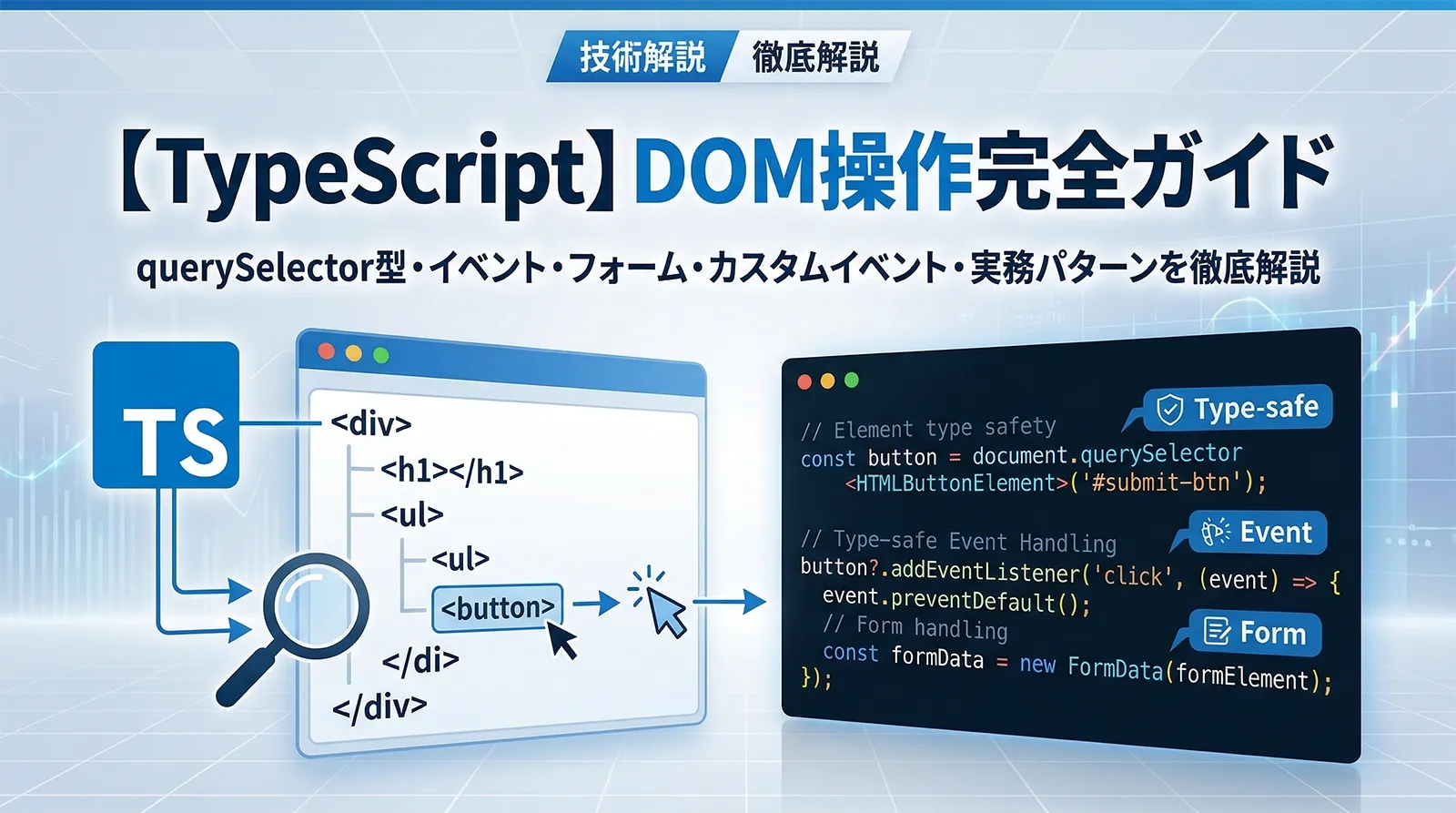
TypeScriptでDOM操作を書き始めると、最初に直面するのがdocument.querySelector('#btn')の戻り値がElement | nullであり、HTMLButtonElementとして扱えないという問題です。
JavaScriptでは何も考えずに document.getElementById('btn').addEventListener(...) と書けますが、TypeScriptでは適切な型を付けてからでないとメソッドやプロパティへのアクセスができません。本記事では、DOM操作時の型定義の基礎から、イベント型・フォーム型・Observer API・カスタムイベントまで体系的に解説します。
- DOM取得メソッド(querySelector・getElementById等)の戻り値の型と安全な扱い方
- HTMLElement階層(Node → EventTarget → Element → HTMLElement → 派生型)の構造
- 型アサーション(
as)vs 型ガード(instanceof)の選び方 - MouseEvent・KeyboardEvent・InputEvent・FocusEvent など各イベント型の使い方
- HTMLInputElement・HTMLSelectElement・HTMLFormElement のフォーム型安全操作
- IntersectionObserver・MutationObserver・ResizeObserver の型定義
- 型安全なカスタムイベント(CustomEvent)の実装パターン
- 実務パターン3本:モーダル制御・無限スクロール・フォームバリデーション
TypeScriptでDOM型を使うには
tsconfig.json の lib に "dom" と "dom.iterable" が必要です。デフォルト設定(libを省略)では自動的に含まれますが、libを明示指定している場合は追加してください。Node.jsプロジェクトで lib: ["esnext"] のみを指定すると DOM 型が使えなくなります。"target": "es2020", "lib": ["es2020", "dom", "dom.iterable"] の指定が一般的です。TypeScriptの型ガードについては型の絞り込み(Narrowing)完全ガイドで、型アサーションの詳細は型アサーション(as・as const・satisfies)完全ガイドも合わせてご参照ください。
DOM取得メソッドの戻り値型
TypeScriptでDOMを操作するには、まず各取得メソッドがどんな型を返すかを理解することが最重要です。
| メソッド | 戻り値型 | 備考 |
|---|---|---|
document.getElementById(id) |
HTMLElement | null |
nullチェック必須。型引数なし |
document.querySelector(sel) |
Element | null |
型引数で絞り込み可能 |
document.querySelectorAll(sel) |
NodeListOf<Element> |
型引数で絞り込み可能。forEachは使えるがmapは使えない |
document.getElementsByClassName(name) |
HTMLCollectionOf<Element> |
ライブコレクション。配列ではない |
document.getElementsByTagName(tag) |
HTMLCollectionOf<T> |
タグ名から型が推論される |
element.closest(sel) |
Element | null |
親要素を辿って検索 |
element.children |
HTMLCollection |
子要素のライブコレクション |
element.parentElement |
HTMLElement | null |
親要素。DocumentFragmentが親の場合null |
querySelectorのジェネリクス型引数
querySelector と querySelectorAll はジェネリクス型引数を受け取ります。型引数を渡すと戻り値の型が絞り込まれ、型アサーション不要になる場面があります。
// 型引数なし → Element | null
const el1 = document.querySelector("#btn");
// el1.click(); // Error: Object is possibly null

// 型引数あり → HTMLButtonElement | null
const el2 = document.querySelector<HTMLButtonElement>("#btn");
// el2?.click(); // OK(null安全にアクセス)

// querySelectorAll の型引数
const inputs = document.querySelectorAll<HTMLInputElement>("input[type=text]");
inputs.forEach((input) => {
  console.log(input.value); // OK: HTMLInputElement として扱える
});

// getElementsByTagName は自動推論
const anchors = document.getElementsByTagName("a");
// anchors: HTMLCollectionOf<HTMLAnchorElement> ("a"タグから推論)
console.log(anchors[0].href); // OK: href は HTMLAnchorElement のプロパティ
querySelector<HTMLButtonElement>() は「TypeScriptへのヒント」であり、実行時バリデーションは行いません。セレクタが実際にボタン要素を指していることを開発者が保証する必要があります。型引数は型アサーション(as)よりも宣言的で読みやすいため、DOM取得では型引数の使用を推奨します。nullチェックと型ガードの実践
DOM取得メソッドの多くは null を返す可能性があります。TypeScriptはstrictモードで null のまま使うとエラーを出します。安全にアクセスするための3つのアプローチを比較します。
アプローチ1:if による nullチェック(最も安全)
const btn = document.querySelector<HTMLButtonElement>("#submit-btn");

if (btn !== null) {
  // このブロック内では btn は HTMLButtonElement
  btn.addEventListener("click", () => {
    btn.disabled = true;
  });
}

// オプショナルチェーン(?.): nullの場合は何もしない
btn?.addEventListener("click", handleClick);

// Null合体演算子(??): nullの場合にフォールバック
const label = document.querySelector<HTMLSpanElement>("#label");
const text = label?.textContent ?? "デフォルトテキスト";
アプローチ2:型アサーション(!・as)
// 非nullアサーション演算子(!)
// 「絶対にnullではない」と確信できる場合のみ使用
const btn = document.querySelector<HTMLButtonElement>("#submit-btn")!;
btn.addEventListener("click", handleClick); // OK(nullでないと断言)

// as によるダウンキャスト
const el = document.getElementById("title") as HTMLHeadingElement;
el.textContent = "新しいタイトル";
! や as は実行時にはチェックを行いません。要素が存在しない場合、Cannot read properties of null エラーが発生します。動的にDOMが変わる可能性がある箇所では ifによるnullチェックまたはオプショナルチェーンを使うことを推奨します。型アサーションは「絶対に存在することがわかっている」静的なHTML要素に限定してください。アプローチ3:instanceof による型ガード(最も型安全)
function getInputValue(selector: string): string | null {
  const el = document.querySelector(selector);

  // instanceof で HTMLInputElement かどうかを実行時チェック
  if (el instanceof HTMLInputElement) {
    return el.value; // ここでは HTMLInputElement として扱える
  }
  if (el instanceof HTMLTextAreaElement) {
    return el.value; // HTMLTextAreaElement として扱える
  }
  return null;
}

// instanceof は実行時に型をチェックするため、最も安全
const el = document.getElementById("username");
if (el instanceof HTMLInputElement) {
  el.value = ""; // 型エラーなし
  el.focus();    // 型エラーなし
}
HTMLElement の型階層を理解する
TypeScriptのDOM型は継承ベースの階層構造になっています。この階層を理解すると、「なぜ Element では value にアクセスできないのか」が明確になります。
// 型階層(上位ほど抽象的)
//
// EventTarget
//   └─ Node
//        ├─ Text(テキストノード)
//        ├─ Comment(コメントノード)
//        └─ Element
//             ├─ SVGElement
//             └─ HTMLElement
//                  ├─ HTMLInputElement      .value, .type, .checked
//                  ├─ HTMLButtonElement     .disabled, .type
//                  ├─ HTMLAnchorElement     .href, .target
//                  ├─ HTMLImageElement      .src, .alt, .width, .height
//                  ├─ HTMLSelectElement     .value, .options, .multiple
//                  ├─ HTMLTextAreaElement   .value, .rows, .cols
//                  ├─ HTMLFormElement       .elements, .submit()
//                  ├─ HTMLCanvasElement     .getContext()
//                  ├─ HTMLVideoElement      .src, .play(), .pause()
//                  ├─ HTMLTableElement      .rows, .insertRow()
//                  └─ ... 他多数
| 型 | 主なプロパティ・メソッド | 特記事項 |
|---|---|---|
EventTarget |
addEventListener, removeEventListener, dispatchEvent |
DOM最上位。Workerなど非DOM要素も持つ |
Node |
childNodes, parentNode, textContent, cloneNode |
テキストノード・コメントも含む広い概念 |
Element |
id, className, setAttribute, querySelector, innerHTML |
HTML・SVG共通。valueはない |
HTMLElement |
style, dataset, hidden, offsetWidth, click() |
HTMLのみ。共通プロパティはここに集約 |
HTMLInputElement |
value, type, checked, files, validity |
type属性で挙動が大きく変わる |
SVGも扱うコードは
Element を、HTMLのみなら HTMLElement を使います。querySelector のデフォルト戻り値が Element | null なのは、TypeScriptがセレクタからHTML/SVGどちらかを判断できないためです。型引数や instanceof で適切な型に絞り込みましょう。イベントハンドラーの型定義
TypeScriptでイベントを扱う際は、イベントオブジェクトの型を正確に指定することで、event.target や event.key などのプロパティへの型安全なアクセスが実現できます。
主要なイベント型一覧
| イベント型 | 対象イベント | 主なプロパティ |
|---|---|---|
MouseEvent |
click, mouseover, mousedown, dblclick |
clientX/Y, button, ctrlKey, target |
KeyboardEvent |
keydown, keyup, keypress |
key, code, ctrlKey, altKey, shiftKey |
InputEvent |
input |
data, inputType |
ChangeEvent(React)/ Event(Web) |
change |
target(value取得は要キャスト) |
FocusEvent |
focus, blur, focusin, focusout |
relatedTarget |
SubmitEvent |
submit |
submitter(送信ボタン要素) |
DragEvent |
dragstart, drop, dragover |
dataTransfer |
WheelEvent |
wheel |
deltaX/Y/Z, deltaMode |
PointerEvent |
pointerdown, pointermove |
pointerId, pressure, pointerType |
TouchEvent |
touchstart, touchmove |
touches, changedTouches |
AnimationEvent |
animationstart, animationend |
animationName, elapsedTime |
TransitionEvent |
transitionend |
propertyName, elapsedTime |
イベント型の具体的な使い方
// --- MouseEvent ---
document.querySelector<HTMLButtonElement>("#btn")?.addEventListener(
  "click",
  (event: MouseEvent) => {
    console.log(`クリック座標: (${event.clientX}, ${event.clientY})`);
    console.log(`Ctrl押下中: ${event.ctrlKey}`);
    // event.target の型は EventTarget | null
    const target = event.currentTarget as HTMLButtonElement;
    target.disabled = true;
  }
);

// --- KeyboardEvent ---
document.addEventListener("keydown", (event: KeyboardEvent) => {
  if (event.key === "Escape") {
    closeModal();
  }
  if (event.ctrlKey && event.key === "s") {
    event.preventDefault(); // デフォルト動作(保存ダイアログ)を抑制
    saveDocument();
  }
});

// --- InputEvent (input イベント) ---
const searchInput = document.querySelector<HTMLInputElement>("#search");
searchInput?.addEventListener("input", (event: Event) => {
  // input イベントの event.target は EventTarget
  // HTMLInputElement として使うには instanceof か as
  const input = event.target;
  if (input instanceof HTMLInputElement) {
    console.log(`入力値: ${input.value}`);
  }
});
event.target と event.currentTarget の型の違い
// event.target     : イベントが発生した要素(EventTarget | null)
// event.currentTarget: addEventListener を呼んだ要素(EventTarget | null)
//
// currentTarget は addEventListener を呼んだ要素に対して as でキャストするのが安全

document.querySelector<HTMLUListElement>("#list")?.addEventListener(
  "click",
  (event: MouseEvent) => {
    // currentTarget → リスト要素(addEventListener をかけた要素)
    const list = event.currentTarget as HTMLUListElement;

    // target → クリックされた要素(li かもしれないし、li 内の span かも)
    if (event.target instanceof HTMLLIElement) {
      console.log(`クリックされたli: ${event.target.textContent}`);
    }
  }
);
addEventListener("click", handler) のように、イベント名の文字列リテラル("click")からTypeScriptは自動的にハンドラーの引数型を MouseEvent と推論します。そのため多くの場合、引数に明示的な型注釈は不要です。ただし汎用的な Event として推論される場面では明示すると補完が向上します。フォーム要素の型安全操作
フォーム関連の型は種類が多く、HTMLInputElement・HTMLSelectElement・HTMLFormElement・HTMLTextAreaElementを適切に使い分けることが重要です。
HTMLInputElement:input要素の操作
const nameInput = document.querySelector<HTMLInputElement>('input[name="name"]');
const agreeCheck = document.querySelector<HTMLInputElement>('input[type="checkbox"]');
const fileInput  = document.querySelector<HTMLInputElement>('input[type="file"]');

if (nameInput) {
  // value: 入力値(string)
  console.log(nameInput.value);
  nameInput.value = "";
  nameInput.focus();
  nameInput.select(); // テキストを全選択

  // validity: バリデーション状態
  console.log(nameInput.validity.valid);       // true/false
  console.log(nameInput.validity.valueMissing); // required 違反
  console.log(nameInput.validationMessage);
}

if (agreeCheck) {
  // checked: チェックボックスの状態(boolean)
  console.log(agreeCheck.checked);
  agreeCheck.checked = true;
}

// ファイル入力
if (fileInput?.files && fileInput.files.length > 0) {
  const file: File = fileInput.files[0];
  console.log(file.name, file.size, file.type);
}
HTMLSelectElement:select要素の操作
const select = document.querySelector<HTMLSelectElement>('select[name="category"]');

if (select) {
  // value: 選択されている option の value
  console.log(select.value);

  // selectedIndex: 選択中の index
  console.log(select.selectedIndex);

  // options: HTMLOptionsCollection
  Array.from(select.options).forEach((opt) => {
    console.log(opt.value, opt.text, opt.selected);
  });

  // multiple 選択の場合(選択された値をすべて取得)
  const selected = Array.from(select.options)
    .filter((opt) => opt.selected)
    .map((opt) => opt.value);
}
HTMLFormElement:フォーム全体の制御
const form = document.querySelector<HTMLFormElement>("#my-form");

form?.addEventListener("submit", (event: SubmitEvent) => {
  event.preventDefault(); // デフォルトのフォーム送信を止める

  // FormData で全フィールドを一括取得
  const formData = new FormData(event.currentTarget as HTMLFormElement);
  const name  = formData.get("name") as string;
  const email = formData.get("email") as string;

  // form.elements でフィールドに名前でアクセス
  const elements = (event.currentTarget as HTMLFormElement).elements;
  const nameEl = elements.namedItem("name") as HTMLInputElement | null;
  console.log(nameEl?.value);

  // HTML5バリデーションを活用
  const f = event.currentTarget as HTMLFormElement;
  if (!f.checkValidity()) {
    f.reportValidity(); // ブラウザのバリデーションUIを表示
    return;
  }
  submitData({ name, email });
});
data属性(dataset)の型安全なアクセス
// HTML: <button data-id="42" data-action="edit">編集</button>
document.querySelectorAll<HTMLButtonElement>("[data-action]").forEach((btn) => {
  btn.addEventListener("click", () => {
    // dataset の値はすべて string | undefined
    const id: string | undefined = btn.dataset.id;
    const action = btn.dataset.action; // string | undefined

    if (id !== undefined && action === "edit") {
      editItem(Number(id)); // 数値変換は手動
    }
  });
});
DOM要素の作成・変更・削除
createElement で型安全に要素を生成
// createElement のタグ名から型が推論される
const btn = document.createElement("button"); // HTMLButtonElement
const img = document.createElement("img");    // HTMLImageElement
const li  = document.createElement("li");     // HTMLLIElement

// 属性・プロパティの設定
btn.type      = "button";
btn.textContent = "送信";
btn.className = "btn btn-primary";
btn.dataset.action = "submit";

img.src = "https://example.com/image.jpg";
img.alt = "サンプル画像";
img.loading = "lazy";

// DOMに追加
const container = document.querySelector<HTMLDivElement>("#container");
container?.appendChild(btn);

// 複数ノードを一度に追加(append, prepend)
container?.append(img, " テキストノード", li);

// DocumentFragment で効率的にバッチ追加
const fragment = document.createDocumentFragment();
const items = ["A", "B", "C"];
items.forEach((text) => {
  const li = document.createElement("li");
  li.textContent = text;
  fragment.appendChild(li);
});
document.querySelector<HTMLUListElement>("#list")?.appendChild(fragment);
cloneNode・insertAdjacentElement・remove
const template = document.querySelector<HTMLDivElement>("#card-template");

// cloneNode(true): 子孫も含めてディープコピー
if (template) {
  const clone = template.cloneNode(true) as HTMLDivElement;
  clone.removeAttribute("id"); // IDの重複を避ける
  clone.querySelector<HTMLHeadingElement>(".title")!.textContent = "新しいカード";
  document.querySelector("#list")?.appendChild(clone);
}

// insertAdjacentElement: 相対位置に挿入
const target = document.querySelector<HTMLParagraphElement>("#target")!;
const newEl  = document.createElement("p");
newEl.textContent = "挿入";
//   "beforebegin" : target の直前の兄弟として
//   "afterbegin"  : target の最初の子として
//   "beforeend"   : target の最後の子として
//   "afterend"    : target の直後の兄弟として
target.insertAdjacentElement("afterend", newEl);

// 要素の削除
document.querySelector("#old")?.remove();

// classList 操作
const el = document.querySelector<HTMLDivElement>("#box");
el?.classList.add("active");
el?.classList.remove("hidden");
el?.classList.toggle("expanded");
console.log(el?.classList.contains("active")); // true
Observer API の型定義
IntersectionObserver:要素の可視性を監視
// コールバックの引数型は自動推論される
const observer = new IntersectionObserver(
  (entries: IntersectionObserverEntry[], observer: IntersectionObserver) => {
    entries.forEach((entry) => {
      if (entry.isIntersecting) {
        // entry.target の型は Element
        const el = entry.target as HTMLImageElement;
        el.src = el.dataset.src ?? ""; // 遅延読み込み
        observer.unobserve(el); // 読み込み後は監視を解除
      }
    });
  },
  {
    root: null,         // ビューポートを基準
    rootMargin: "0px",
    threshold: 0.1,     // 10%見えたらコールバック
  }
);

// 遅延読み込み対象の画像を監視
document.querySelectorAll<HTMLImageElement>("img[data-src]").forEach((img) => {
  observer.observe(img);
});
MutationObserver:DOM変更を監視
const mutationObserver = new MutationObserver(
  (mutations: MutationRecord[], observer: MutationObserver) => {
    mutations.forEach((mutation) => {
      if (mutation.type === "childList") {
        // mutation.addedNodes: NodeList
        mutation.addedNodes.forEach((node) => {
          if (node instanceof HTMLElement) {
            console.log("追加された要素:", node.tagName);
          }
        });
      }
      if (mutation.type === "attributes") {
        console.log("変更された属性:", mutation.attributeName);
        console.log("古い値:", mutation.oldValue);
      }
    });
  }
);

const target = document.querySelector<HTMLElement>("#dynamic-container")!;
mutationObserver.observe(target, {
  childList: true,    // 子要素の追加・削除を監視
  attributes: true,   // 属性の変化を監視
  subtree: true,      // 子孫まで再帰的に監視
  attributeOldValue: true, // 変更前の属性値を記録
});

// 監視を停止
mutationObserver.disconnect();
ResizeObserver:要素サイズ変化を監視
const resizeObserver = new ResizeObserver(
  (entries: ResizeObserverEntry[]) => {
    entries.forEach((entry) => {
      const { width, height } = entry.contentRect;
      console.log(`サイズ変化: ${width}px × ${height}px`);

      // entry.target の型は Element
      const el = entry.target as HTMLCanvasElement;
      el.width  = Math.floor(width);
      el.height = Math.floor(height);
    });
  }
);

const canvas = document.querySelector<HTMLCanvasElement>("#canvas")!;
resizeObserver.observe(canvas);
型安全なカスタムイベント(CustomEvent)
コンポーネント間の通信に CustomEvent を使う場合、ジェネリクスで detail の型を指定することで型安全なイベント通信が実現できます。
基本的なカスタムイベント
// カスタムイベントの detail 型を定義
interface CartItem {
  productId: number;
  quantity:  number;
  price:     number;
}

// CustomEvent<T> でdetailの型を指定
const event = new CustomEvent<CartItem>("cart:add", {
  detail: {
    productId: 42,
    quantity:  1,
    price:     1980,
  },
  bubbles:    true,  // バブリングを許可
  cancelable: true,  // preventDefault() を許可
  composed:   false, // ShadowDOM境界を越えない
});

// 発火
document.dispatchEvent(event);

// 受信(型は手動でキャスト)
document.addEventListener("cart:add", (event: Event) => {
  const custom = event as CustomEvent<CartItem>;
  console.log(custom.detail.productId); // 型安全にアクセス
  console.log(custom.detail.price);
});
型安全なカスタムイベントバスの実装
// イベント名と detail 型のマッピングを定義
interface AppEventMap {
  "user:login":   { userId: number; username: string };
  "user:logout":  { userId: number };
  "cart:add":     { productId: number; quantity: number };
  "cart:clear":   never; // detail なし
  "notification": { message: string; level: "info" | "warn" | "error" };
}

// 型安全なイベントバスクラス
class TypedEventBus {
  private target = new EventTarget();

  emit<K extends keyof AppEventMap>(
    name: K,
    detail: AppEventMap[K] extends never ? undefined : AppEventMap[K]
  ): void {
    this.target.dispatchEvent(
      new CustomEvent(name as string, { detail })
    );
  }

  on<K extends keyof AppEventMap>(
    name: K,
    handler: (detail: AppEventMap[K]) => void
  ): () => void {
    const listener = (event: Event) => {
      handler((event as CustomEvent<AppEventMap[K]>).detail);
    };
    this.target.addEventListener(name as string, listener);
    // クリーンアップ関数を返す
    return () => this.target.removeEventListener(name as string, listener);
  }
}

// 使用例
const bus = new TypedEventBus();

const cleanup = bus.on("user:login", (detail) => {
  // detail の型は { userId: number; username: string }
  console.log(`ログイン: ${detail.username}`);
});

bus.emit("user:login", { userId: 1, username: "Alice" }); // OK
// bus.emit("user:login", { userId: 1 }); // Error: username が不足

cleanup(); // イベントリスナーを削除
カスタムイベントは疎結合なコンポーネント通信に適しています。ただし型安全性の担保が複雑になりやすいため、小〜中規模では直接コールバックを渡す方が単純です。大規模アプリでは Redux・Zustand 等の状態管理ライブラリの型安全な実装が選択肢に入ります。
CSSスタイルとアニメーションの型安全操作
const box = document.querySelector<HTMLDivElement>("#box");

if (box) {
  // style プロパティ: CSSStyleDeclaration 型
  box.style.backgroundColor = "#0284c7";
  box.style.width           = "200px";
  box.style.transform       = "translateX(100px)";
  box.style.transition      = "all 0.3s ease";

  // CSS カスタムプロパティ(CSS変数)
  box.style.setProperty("--color", "#ff6b6b");
  const color = box.style.getPropertyValue("--color");

  // getComputedStyle: 計算済みスタイルを取得
  const computed = window.getComputedStyle(box);
  const height = computed.height; // string: "200px"
  console.log(parseFloat(height)); // 200

  // getBoundingClientRect: 位置・サイズ情報(DOMRect型)
  const rect: DOMRect = box.getBoundingClientRect();
  console.log(rect.top, rect.left, rect.width, rect.height);

  // Web Animations API
  const animation: Animation = box.animate(
    [
      { opacity: 0, transform: "translateY(-20px)" },
      { opacity: 1, transform: "translateY(0)" },
    ],
    { duration: 300, easing: "ease-out", fill: "forwards" }
  );
  animation.onfinish = () => console.log("アニメーション完了");
}
localStorage・sessionStorage の型安全ラッパー
localStorage.getItem() の戻り値は string | null で、オブジェクトを格納する際は JSON のシリアライズ/デシリアライズが必要です。型安全なラッパーを作ることで、ストレージ操作の型エラーをコンパイル時に検出できます。
// ストレージに保存するデータの型マッピング
interface StorageSchema {
  "auth:token":    string;
  "user:profile":  { id: number; name: string; email: string };
  "theme":         "light" | "dark";
  "cart:items":    Array<{ productId: number; quantity: number }>;
}

// 型安全なlocalStorageラッパー
const typedStorage = {
  get<K extends keyof StorageSchema>(key: K): StorageSchema[K] | null {
    const raw = localStorage.getItem(key);
    if (raw === null) return null;
    try {
      return JSON.parse(raw) as StorageSchema[K];
    } catch {
      return null;
    }
  },

  set<K extends keyof StorageSchema>(key: K, value: StorageSchema[K]): void {
    localStorage.setItem(key, JSON.stringify(value));
  },

  remove<K extends keyof StorageSchema>(key: K): void {
    localStorage.removeItem(key);
  },
};

// 使用例(型補完と型チェックが効く)
typedStorage.set("theme", "dark");           // OK
// typedStorage.set("theme", "blue");        // Error: "blue" は型に含まれない

const theme = typedStorage.get("theme");      // "light" | "dark" | null
if (theme !== null) {
  document.documentElement.dataset.theme = theme;
}

typedStorage.set("user:profile", { id: 1, name: "Alice", email: "a@example.com" });
const profile = typedStorage.get("user:profile");
// profile の型: { id: number; name: string; email: string } | null
console.log(profile?.name); // "Alice"
JSON.parse() の結果に as T でキャストしても実行時の型保証はありません。本番環境では Zod 等のバリデーションライブラリと組み合わせて、ストレージから取得したデータを実行時に検証することを推奨します。よくある型エラーと解決策
DOM操作でよく遭遇するTypeScript型エラーと、その原因・解決策をまとめます。TypeScriptのよくあるエラーと解決方法も合わせて参照してください。
| エラーメッセージ | 原因 | 解決策 |
|---|---|---|
Object is possibly 'null' |
querySelector等がnullを返す可能性 | if (el) { ... } or el?.method() |
Property 'value' does not exist on type 'Element' |
Elementにvalueはない |
HTMLInputElementにキャスト or instanceofチェック |
Argument of type 'string' is not assignable to type 'Element' |
append()に文字列は渡せる(型定義上はOK) |
実はappendはstring受け入れ可。エラーが出る場合はNode型確認 |
Property 'files' does not exist on type 'HTMLElement' |
getElementByIdの戻り値がHTMLElement |
as HTMLInputElement or instanceofチェック |
Cannot read properties of null(実行時) |
型アサーション(!/as)で要素が存在しないケース |
存在確認を先行。動的DOMには!を使わない |
NodeList.map is not a function(実行時) |
NodeListOf<T>はArrayではない |
Array.from(nodeList).map(...) or [...nodeList].map(...) |
NodeList を配列に変換する
const items = document.querySelectorAll<HTMLLIElement>("li");
// items.map(...) // Error: NodeListOf<T> に map はない

// 解決策1: Array.from()
const texts1 = Array.from(items).map((li) => li.textContent);

// 解決策2: スプレッド演算子
const texts2 = [...items].map((li) => li.textContent);

// forEach は NodeListOf<T> でも使える
items.forEach((li) => console.log(li.textContent));
実務パターン3本
実務パターン1:型安全なモーダル制御クラス
// モーダルの開閉・フォーカストラップ・ESCキー対応を型安全に実装
class Modal {
  private overlay: HTMLElement;
  private dialog:  HTMLElement;
  private closeBtn: HTMLButtonElement;
  private onEscKey: (e: KeyboardEvent) => void;
  private focusableSelector =
    'a[href], button:not([disabled]), input, textarea, select, [tabindex]:not([tabindex="-1"])';

  constructor(private modalId: string) {
    const overlay = document.querySelector<HTMLElement>(`#${modalId}`);
    const dialog  = overlay?.querySelector<HTMLElement>("[role=dialog]");
    const btn     = overlay?.querySelector<HTMLButtonElement>(".modal-close");

    if (!overlay || !dialog || !btn) {
      throw new Error(`Modal#${modalId}: 必要な要素が見つかりません`);
    }
    this.overlay  = overlay;
    this.dialog   = dialog;
    this.closeBtn = btn;

    this.onEscKey = (e: KeyboardEvent) => {
      if (e.key === "Escape") this.close();
    };

    this.closeBtn.addEventListener("click", () => this.close());
    this.overlay.addEventListener("click", (e: MouseEvent) => {
      if (e.target === this.overlay) this.close();
    });
  }

  open(): void {
    this.overlay.hidden = false;
    this.overlay.setAttribute("aria-hidden", "false");
    document.addEventListener("keydown", this.onEscKey);
    // フォーカスを最初のフォーカス可能要素に移動
    const first = this.dialog.querySelector<HTMLElement>(this.focusableSelector);
    first?.focus();
  }

  close(): void {
    this.overlay.hidden = true;
    this.overlay.setAttribute("aria-hidden", "true");
    document.removeEventListener("keydown", this.onEscKey);
  }
}

// 使用例
const modal = new Modal("signup-modal");
document.querySelector("#open-btn")?.addEventListener("click", () => modal.open());
実務パターン2:IntersectionObserver で無限スクロール
interface Post {
  id:      number;
  title:   string;
  content: string;
}

class InfiniteScroller {
  private page      = 1;
  private loading   = false;
  private observer: IntersectionObserver;
  private sentinel: HTMLElement;
  private list:     HTMLElement;

  constructor(
    private listSelector:     string,
    private sentinelSelector: string,
    private fetcher: (page: number) => Promise<Post[]>
  ) {
    const list     = document.querySelector<HTMLElement>(this.listSelector);
    const sentinel = document.querySelector<HTMLElement>(this.sentinelSelector);
    if (!list || !sentinel) throw new Error("要素が見つかりません");

    this.list     = list;
    this.sentinel = sentinel;

    this.observer = new IntersectionObserver(
      (entries: IntersectionObserverEntry[]) => {
        if (entries[0].isIntersecting && !this.loading) {
          void this.loadMore();
        }
      },
      { rootMargin: "100px" }
    );
    this.observer.observe(this.sentinel);
  }

  private async loadMore(): Promise<void> {
    this.loading = true;
    this.sentinel.textContent = "読み込み中...";

    try {
      const posts = await this.fetcher(this.page);
      if (posts.length === 0) {
        this.observer.disconnect();
        this.sentinel.textContent = "すべて読み込みました";
        return;
      }
      const fragment = document.createDocumentFragment();
      posts.forEach((post) => {
        const li  = document.createElement("li");
        const h3  = document.createElement("h3");
        const p   = document.createElement("p");
        // textContent を使うことでXSSを防ぐ(innerHTML の代わりに推奨)
        h3.textContent = post.title;
        p.textContent  = post.content;
        li.append(h3, p);
        fragment.appendChild(li);
      });
      this.list.appendChild(fragment);
      this.page++;
    } finally {
      this.loading = false;
      this.sentinel.textContent = "";
    }
  }
}

// 使用例
const scroller = new InfiniteScroller(
  "#post-list",
  "#sentinel",
  async (page) => {
    const res = await fetch(`/api/posts?page=${page}`);
    return res.json() as Promise<Post[]>;
  }
);
実務パターン3:リアルタイムフォームバリデーション
// フィールドごとのバリデーションルールを型で定義
type ValidateResult = { valid: boolean; message: string };
type Validator = (value: string) => ValidateResult;

const validators: Record<string, Validator> = {
  name: (v) => ({
    valid:   v.trim().length >= 2,
    message: "名前は2文字以上で入力してください",
  }),
  email: (v) => ({
    valid:   /^[^\s@]+@[^\s@]+\.[^\s@]+$/.test(v),
    message: "有効なメールアドレスを入力してください",
  }),
  password: (v) => ({
    valid:   v.length >= 8 && /[A-Z]/.test(v) && /[0-9]/.test(v),
    message: "8文字以上、大文字と数字を含めてください",
  }),
};

function setupLiveValidation(formSelector: string): void {
  const form = document.querySelector<HTMLFormElement>(formSelector);
  if (!form) return;

  Object.keys(validators).forEach((fieldName) => {
    const input = form.querySelector<HTMLInputElement>(`[name="${fieldName}"]`);
    const errorEl = form.querySelector<HTMLElement>(`#error-${fieldName}`);
    if (!input || !errorEl) return;

    const validate = (): void => {
      const result = validators[fieldName](input.value);
      input.setAttribute("aria-invalid", String(!result.valid));
      errorEl.textContent = result.valid ? "" : result.message;
      errorEl.hidden = result.valid;
    };

    input.addEventListener("blur",  validate); // フォーカスが外れたとき
    input.addEventListener("input", validate); // 入力中(blur後のみ有効化が望ましい)
  });

  form.addEventListener("submit", (e: SubmitEvent) => {
    e.preventDefault();
    let allValid = true;
    Object.keys(validators).forEach((fieldName) => {
      const input = form.querySelector<HTMLInputElement>(`[name="${fieldName}"]`);
      if (!input) return;
      const result = validators[fieldName](input.value);
      if (!result.valid) allValid = false;
    });
    if (allValid) submitForm(new FormData(form));
  });
}

setupLiveValidation("#contact-form");
よくある質問
Qdocument.getElementById と document.querySelector はどちらを使うべきですか?
AquerySelector が推奨です。型引数でDOMの型を指定できる点と、CSSセレクタで柔軟に要素を絞り込める点が優れています。getElementById は HTMLElement | null を返し型引数が使えません。一方、パフォーマンスは getElementById がわずかに速いため、ループ内で大量実行する場合は検討の余地があります。
QinnerHTML と textContent の使い分けと型は?
AinnerHTML はHTML文字列として解釈され、textContentはテキストとして扱います。両方とも型は string | null(プロパティ設定時は string)です。ユーザー入力を innerHTML に直接セットするとXSS脆弱性の原因になります。ユーザー入力には必ず textContent を使ってください。
QTypeScriptでSVG要素を操作する型は?
ASVG要素は SVGElement の派生型です。SVGSVGElement(svg要素)・SVGPathElement(path)・SVGCircleElement(circle)等があります。document.querySelector<SVGSVGElement>("svg") のように型引数で指定できます。setAttribute でSVG属性を設定するのが基本です(styleプロパティはHTMLほど直接は操作しにくい)。
Qlib の “DOM” を tsconfig に設定しないとDOM型が使えないのはなぜですか?
ATypeScriptはデフォルトで lib: ["dom", "dom.iterable", "esnext"] を含みます。ただし lib を明示的に指定すると、記載した型のみが有効になります。Node.jsプロジェクトで lib: ["esnext"] と指定しているとDOM型が使えなくなります。フロントエンドコードを含むプロジェクトでは "dom" と "dom.iterable" を必ず含めてください。
QWeb Componentsをカスタム要素として定義する場合の型は?
AHTMLElement を継承したクラスを定義し、customElements.define() で登録します。TypeScriptでは HTMLElementTagNameMap インターフェースを拡張(Module Augmentation)することで、document.querySelector("my-button") の戻り値型を独自クラスにできます。型定義ファイル(.d.ts)のModule Augmentationはこちらで解説しています。
まとめ
TypeScriptでDOM操作をする際の主要ポイントをまとめます。
| ポイント | 推奨アプローチ |
|---|---|
| DOM取得 | querySelector<T>() で型引数を使う |
| nullチェック | if (el) { ... } または el?.method()で安全にアクセス |
| 要素の型絞り込み | instanceof HTMLInputElement 等で実行時チェック |
| イベント型 | MouseEvent・KeyboardEvent等、イベント名から推論されるため多くは省略可 |
| フォーム値取得 | HTMLInputElement・HTMLSelectElementにキャストして.valueアクセス |
| 動的DOM生成 | createElement("button") でタグ名から型推論。DocumentFragmentでバッチ追加 |
| カスタムイベント | CustomEvent<T> でdetailを型付け。型安全なイベントバスで管理 |
| Observer API | IntersectionObserver・MutationObserver・ResizeObserverコールバック型は自動推論 |
DOM操作の型安全性を高めることで、実行時エラーを大幅に減らせます。型の絞り込み・型アサーション・TypeScriptの型基礎も合わせて理解することで、より堅牢なフロントエンドコードが書けるようになります。